Local AI hardware guide
Ollama Not Using GPU? Check Usage and Fix CPU Fallback
Use ollama ps to tell CPU-only inference from partial GPU offloading, then follow focused checks for compatible hardware, drivers, memory, and runtime logs.
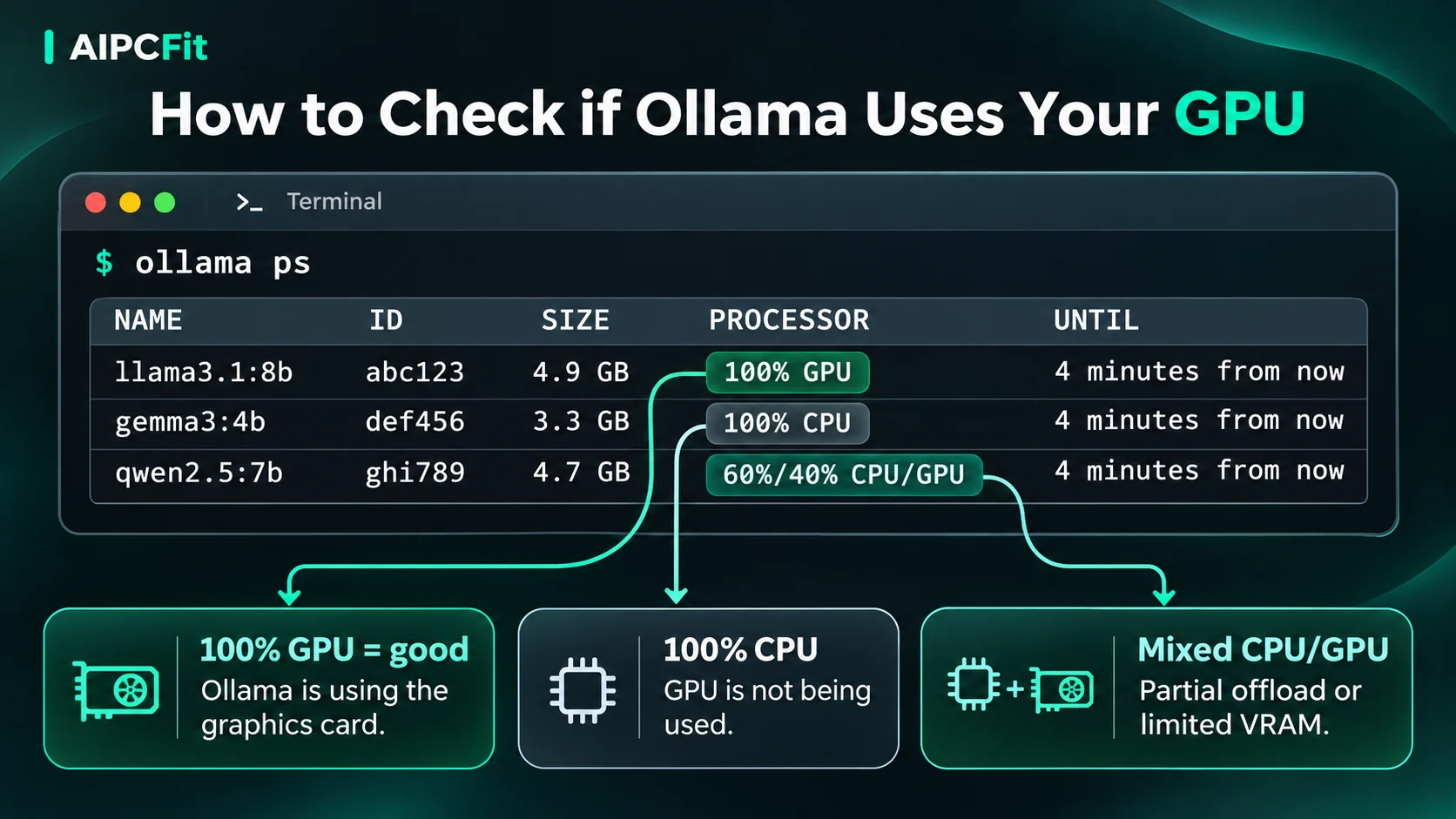
If Ollama responds slowly and you expected GPU acceleration, first check where the loaded model is running. In a terminal, run ollama ps after sending a prompt to a local model. The PROCESSOR column shows 100% GPU, 100% CPU, or a mixed CPU/GPU split. These outcomes require different next steps; 100% CPU alone does not prove that your GPU driver is broken.
Quick test: is Ollama using your GPU?
- Start a local model, for example with `ollama run llama3.2:3b`, and send it a short message. A cloud-hosted model does not test your local GPU.
- While the model remains loaded, open another terminal and run `ollama ps`.
- Read the `PROCESSOR` column. If no models appear, issue another prompt and check again before the model unloads.
- Use the result below to decide whether to check GPU support, memory pressure, or a different cause of slowness.
| PROCESSOR | Meaning | Next check |
|---|---|---|
| 100% GPU | The loaded model is fully assigned to GPU memory according to Ollama. | GPU offloading is not the main issue. Check prompt length, model size, and actual generation speed. |
| 100% CPU | The loaded model is assigned to system memory. This can be intentional or an unexpected fallback. | Check GPU compatibility, available hardware, drivers, service settings, and logs. |
| CPU/GPU split | The model is only partly offloaded to GPU memory. | Check free VRAM, model size, and context length before assuming GPU detection is failing. |
1. Confirm your GPU is supported by Ollama
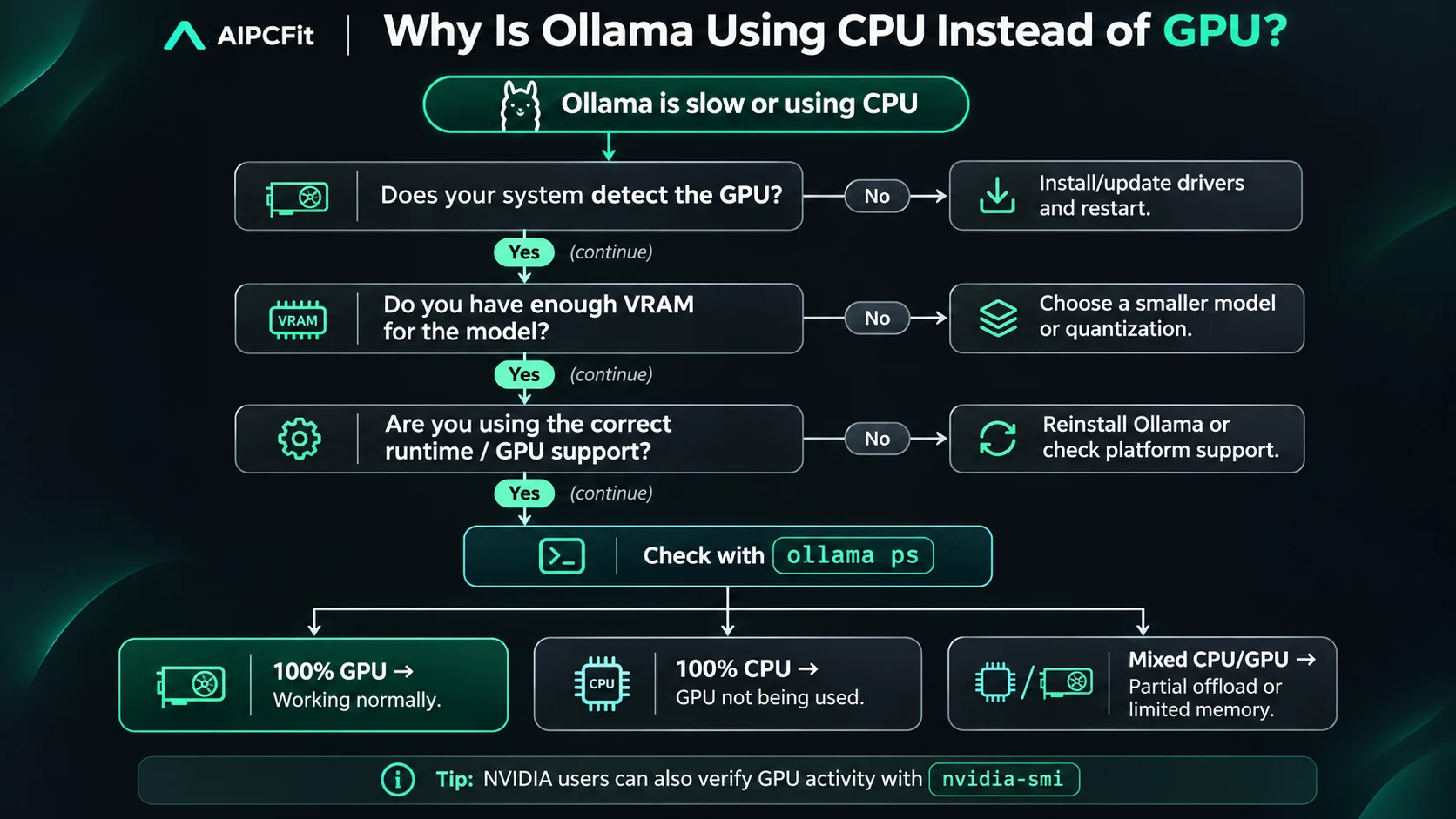
GPU acceleration depends on the exact GPU, operating system, driver, and backend. Confirm your card against Ollama's official hardware-support documentation before changing settings. Some integrated GPUs and older cards have different support paths. A CPU-only machine can still run smaller models, but it cannot be fixed into having discrete GPU acceleration by changing an environment variable.
Not sure which model fits your hardware? Check your PC with AIPCFit to compare GPU VRAM, system RAM, and supported local-model configurations.
2. For NVIDIA, check that the driver can see the GPU
- On Windows or Linux with an NVIDIA GPU, run `nvidia-smi` in a terminal. Check whether it recognizes the expected card and reports its memory.
- If `nvidia-smi` fails, investigate the NVIDIA driver and operating-system compatibility before changing model settings.
- If the system sees the card but `ollama ps` still says `100% CPU`, consult Ollama's troubleshooting guide and server logs. Restart Ollama after a supported driver update.
- If the card is recognized but the model is split between CPU and GPU, examine free VRAM and the model's active context; a smaller quantized model may fit more comfortably.
Do not assume that 100% CPU means a specific driver-version bug. It can also follow unsupported hardware, a forced CPU setting, GPU discovery errors, or a deployment that cannot access the device. Follow current official guidance for your card rather than copying arbitrary driver or kernel commands from older forum posts.
3. If Ollama splits work between CPU and GPU, check VRAM
Partial offloading is different from a completely missing GPU. The weights, KV cache, and runtime state use memory, so even a model whose download file looks smaller than your card's capacity may not fit wholly into available VRAM. Try a smaller official model variant or a shorter context, and compare the PROCESSOR value again. Do not interpret a model's file size as a guaranteed GPU-memory requirement.
If a longer context is forcing partial CPU offload, follow our Ollama context length and VRAM guide to test 4K, 8K, and 16K on the same model before changing GPU drivers.
4. AMD, Apple silicon, and Docker need different checks
- AMD on Linux: confirm that your particular GPU and software stack are supported, then consult Ollama's troubleshooting guidance for driver and device-permission problems. Do not apply NVIDIA-only commands to AMD hardware.
- Apple silicon: memory is unified, not separate dedicated GPU VRAM. Check model loading and available memory, and avoid treating an NVIDIA `nvidia-smi` command as relevant to your Mac.
- Docker on Linux: make sure the container can access the GPU. If the host sees the card but the container does not, consult the official Ollama Docker and GPU documentation before changing container privileges.
5. Read Ollama logs before changing low-level settings
If a supported GPU is present, visible to the operating system, and still unused by Ollama, check the runtime logs for discovery or initialization errors. Official Ollama troubleshooting documentation has platform-specific instructions. Driver reinstalls, kernel-module reloads, and elevated container privileges have side effects; only attempt changes that match a confirmed error and your operating system.
GPU detected but generation is still slow?
A 100% GPU reading tells you where the model is loaded, not how many tokens per second you will get. Larger models, long contexts, prompt processing, thermal limits, and competing GPU workloads can still reduce responsiveness. Compare one model and prompt at a time; do not trust universal speed claims without measured hardware and runtime details.
If your PC deliberately has no usable GPU, follow the Ollama without GPU guide. For general performance bottlenecks, read Why is local AI so slow?.
Ready to choose a smaller model or verify PC fit? Try the AIPCFit local LLM checker before downloading another large model.